

Who TypingMind is for
TypingMind is for you if
- You use more than one AI model and don’t want a separate subscription for each one, or to rebuild the same prompts, tools and context every time you switch apps.
- You want to customize how the AI works for you: your own models and endpoints, agents with their own instructions, training files, knowledge-base scope, memory, plugins and skills you install or build, and settings that follow the chat or the agent.
- You repeat the same kinds of work (client drafts, code reviews, research summaries) and want that setup saved instead of retyped.
- You’d rather pay once for the workspace and per use for the models, keep your data on your device by default, and paste an API key once.
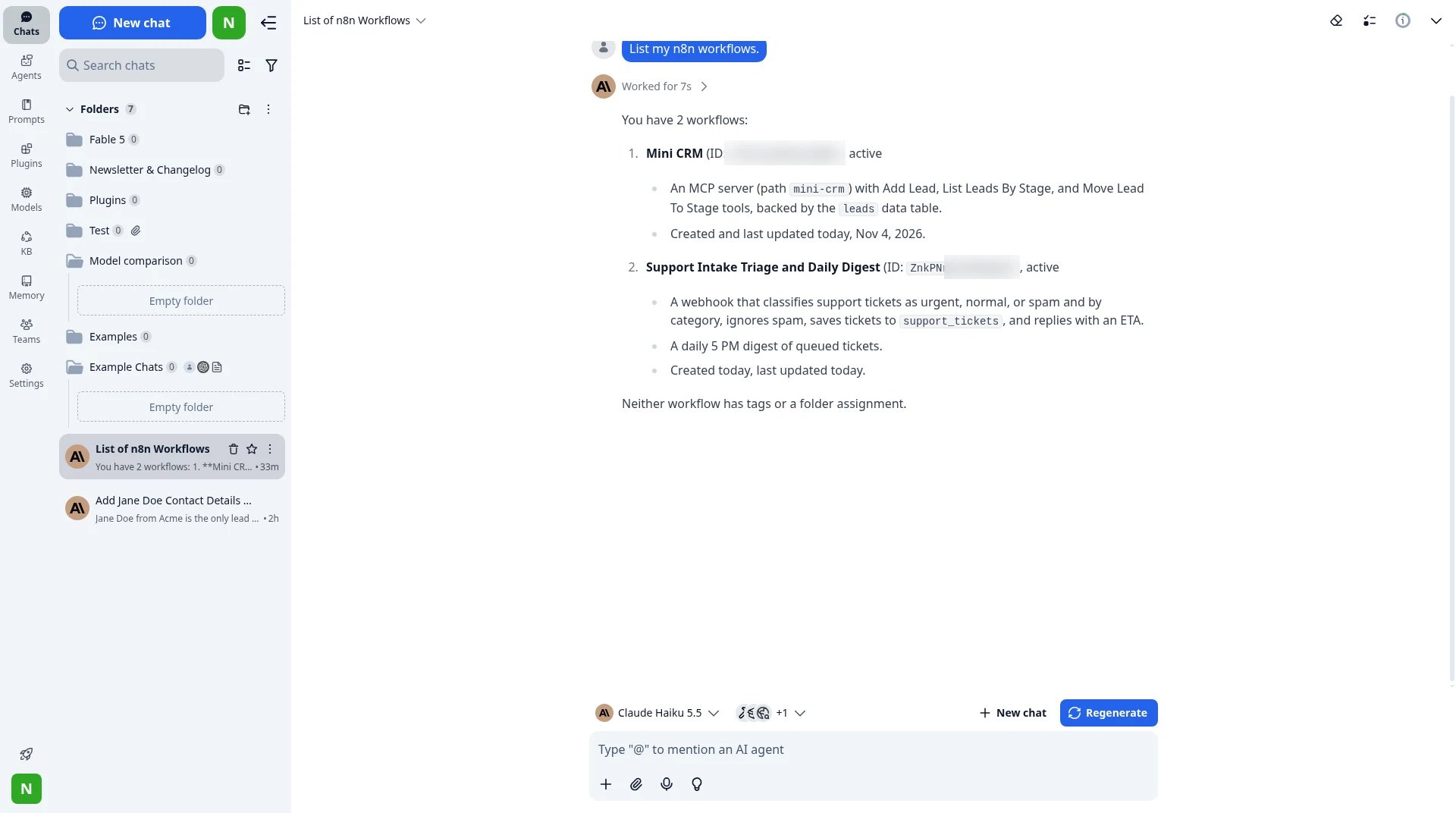
A real TypingMind chat. Folders on the left keep projects apart, and the model switcher sits above the message box.
One workspace for every major model
The ChatGPT / Claude / Gemini answer: use each vendor’s app for that vendor’s models. That works until the best model for the next step lives in another app, where your prompts, folders and tools don’t follow. What TypingMind does differently: every major provider sits in one Models list. Mid-chat, you open the picker and move from a local Ollama model to OpenRouter to Claude to Gemini without opening a new tab or pasting context again. The chat, the agent and the tools stay as they are; only the model changes.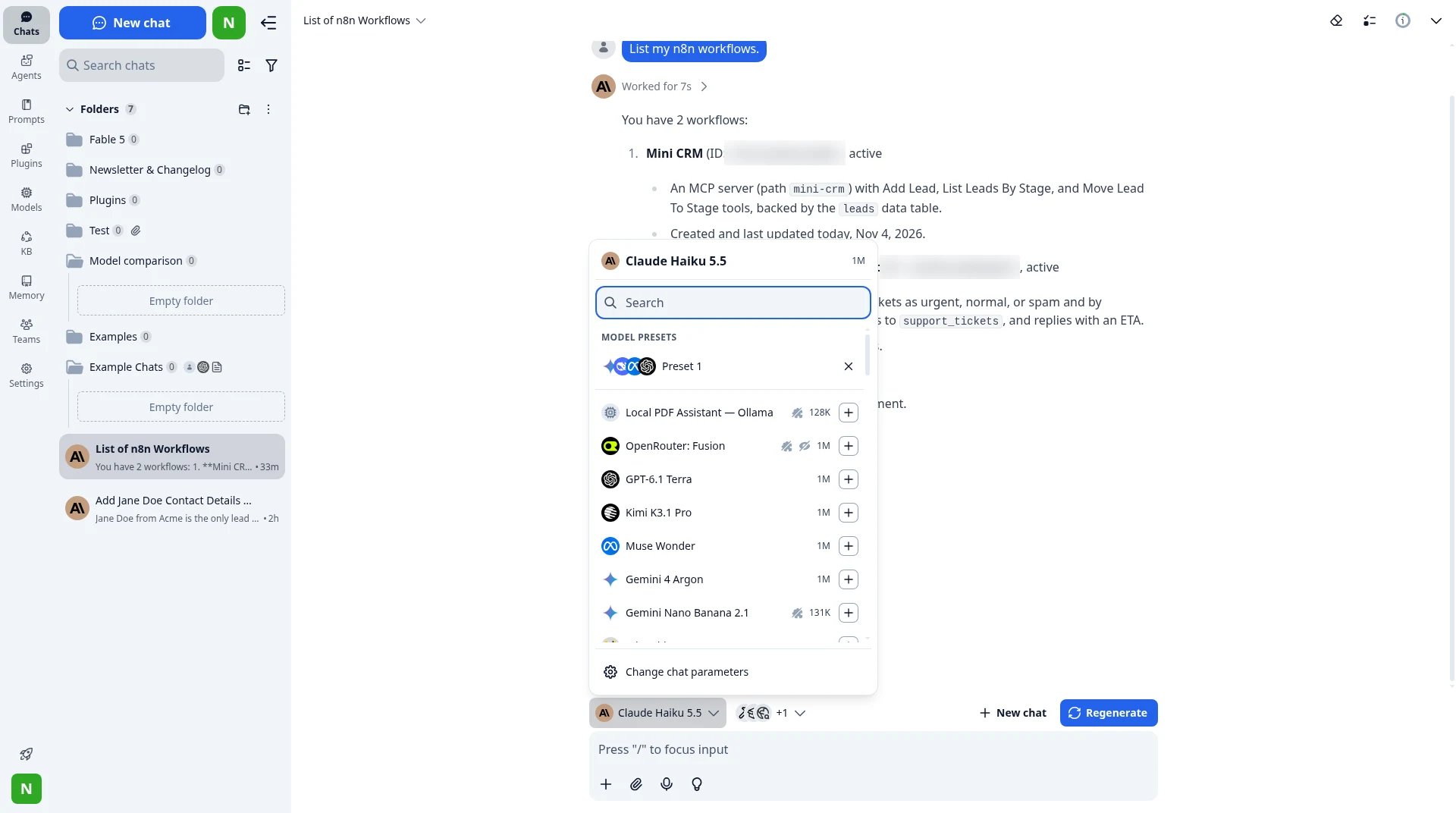
The model picker mid-chat: a local Ollama model, OpenRouter, OpenAI, Google and more, in the same chat with the same tools.
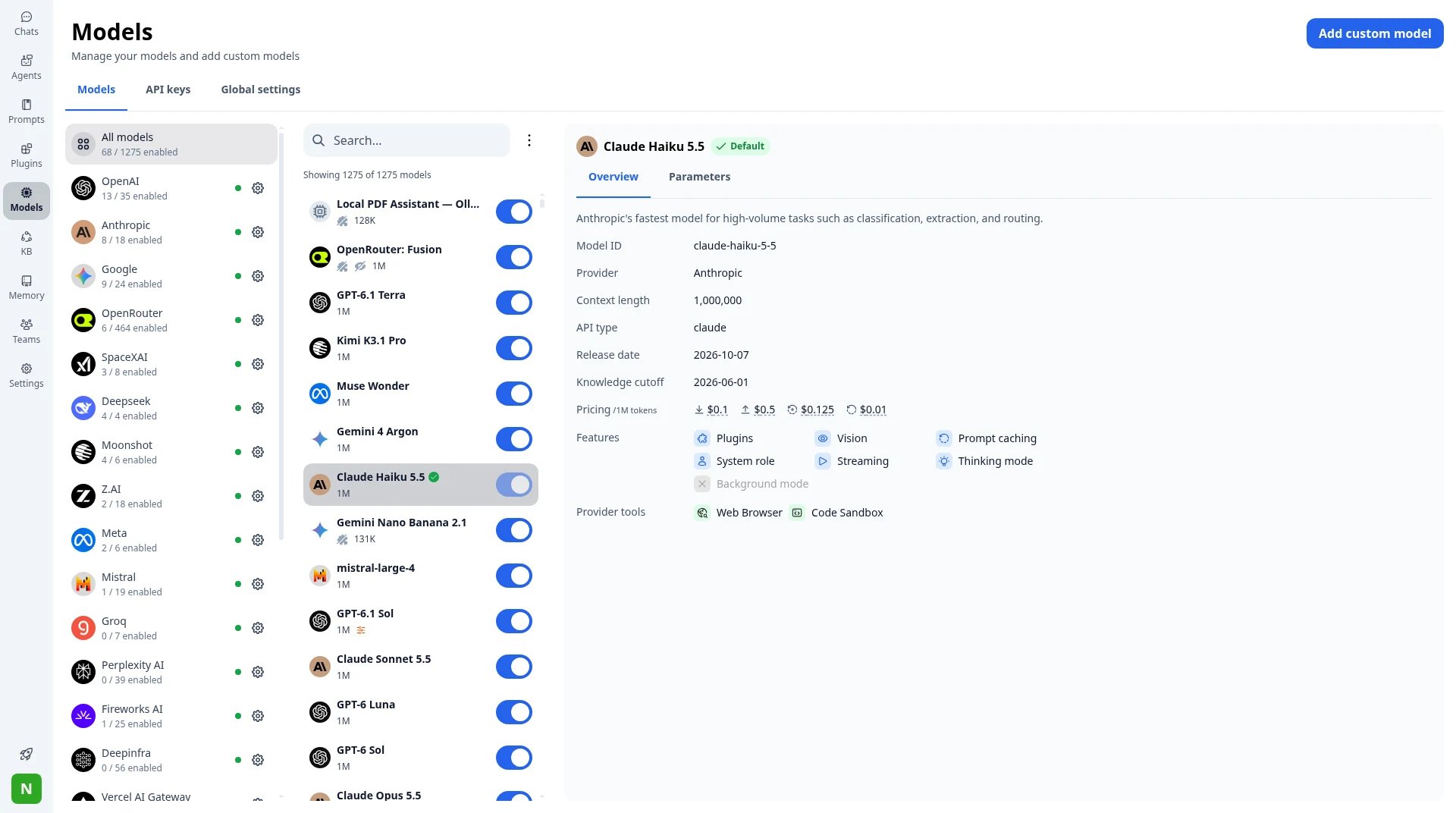
Models → every provider in one place, with per-model on/off toggles and details.
“It allows me to centralize all my interactions with the different models. I really like the ability to setup my own prompts and profiles. There’s almost no reason for me to use any other application to interact with all the models out there.” — Graydon T., Founder, CapterraFor example, say you’re drafting a client proposal. Start on Claude for the narrative, switch to a stronger reasoning model for the pricing table, then try Gemini for a rewrite, all in the same chat with the same agent and brief.
Custom endpoints, local runners and your own keys
The ChatGPT / Claude answer: pick from the models that vendor ships. Custom MCP and connectors exist inside those products (ChatGPT MCP, Claude connectors), but they run with that product’s models and account. What TypingMind does differently: Add custom model lets you point at any compatible endpoint yourself. You choose the API Type (OpenAI Chat Completions, OpenAI Responses, Claude Messages, or Gemini API), the Endpoint URL, and the Authentication Type (including No authentication for a local server), then click Test & Save. That covers Azure-style gateways, OpenRouter, and local runners like Ollama and LM Studio. When the model runs on your machine, the conversation can stay there with it.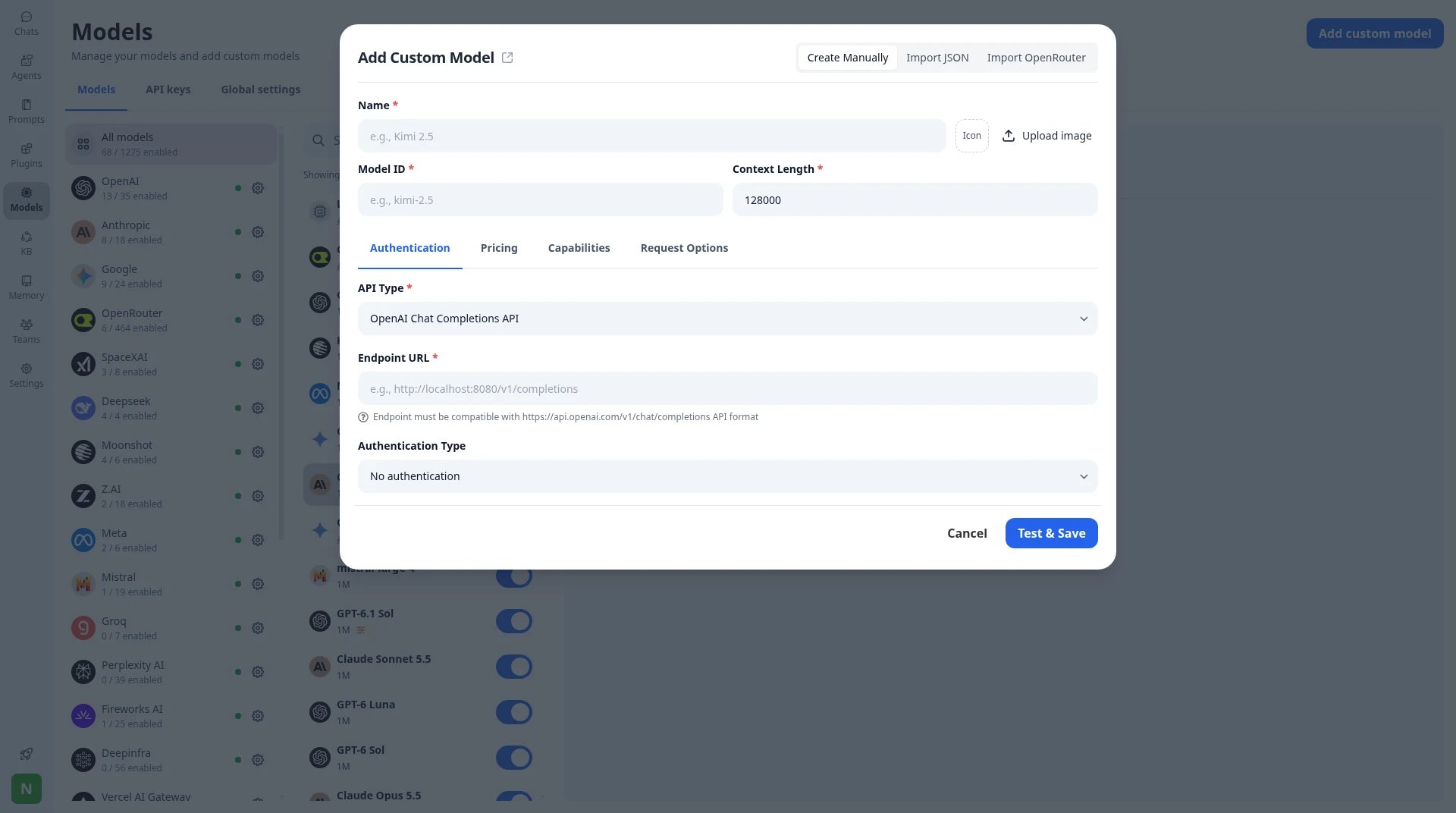
Add custom model: API Type, Endpoint URL, Authentication Type, Test & Save, also for a local Ollama or LM Studio server.
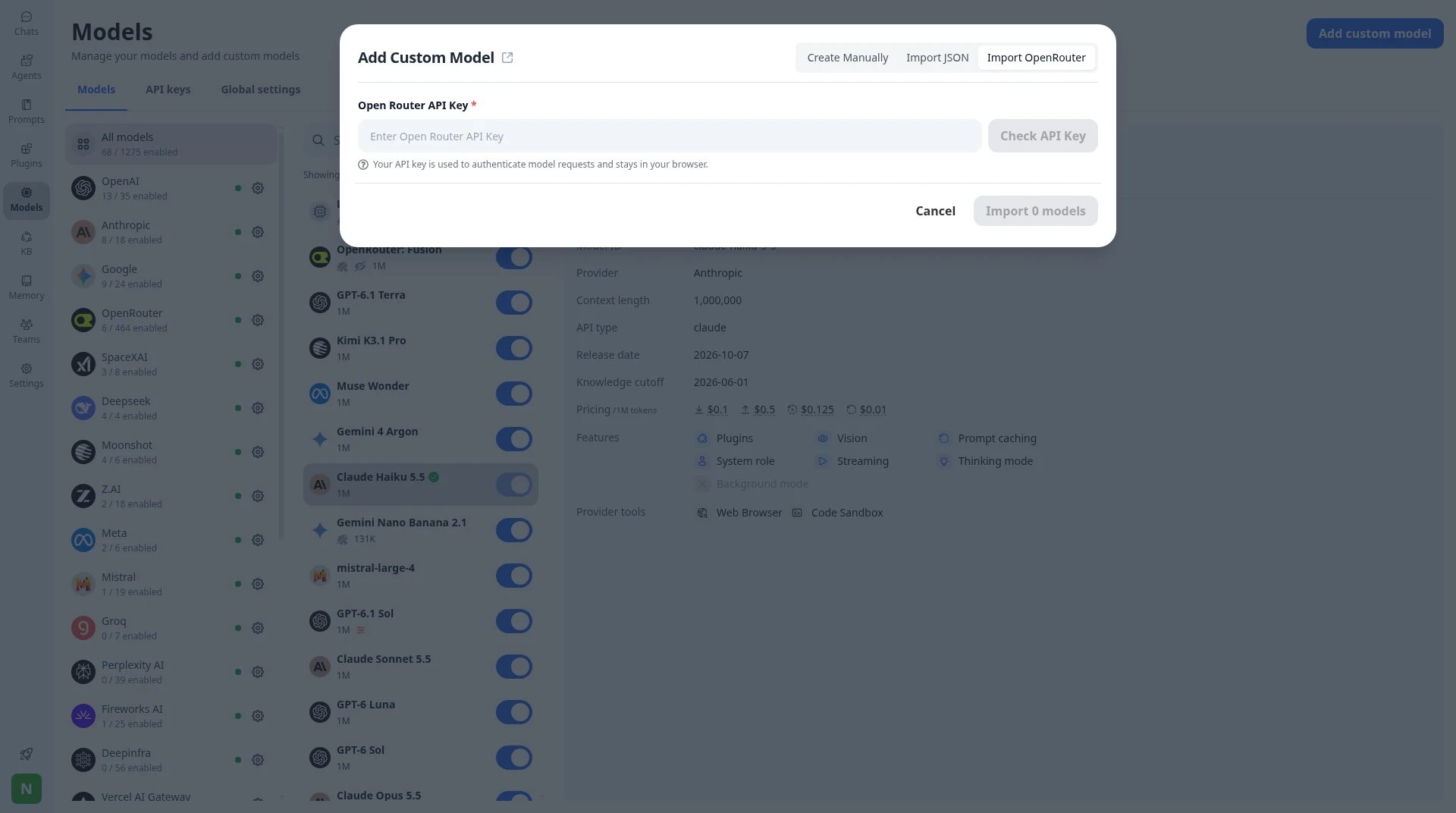
Import OpenRouter: paste a key once and import the models you want. The key stays in your browser.
Agents with their own files, knowledge and tools
The ChatGPT / Claude answer: Custom GPTs and Claude Projects both let you add instructions and files. ChatGPT Projects also support project-only memory (OpenAI Projects help). Those features are real, but they only work with that vendor’s models and limits. What TypingMind does differently: New AI agent opens a full setup form. You get a System instruction, Training files, Knowledge base access (All / None / Tag based), Dynamic context, Few-shot prompting, a Welcome message, and Conversation starters. You assign a base model (or keep switching), assign tools, and decide exactly how much of your knowledge base that agent may see.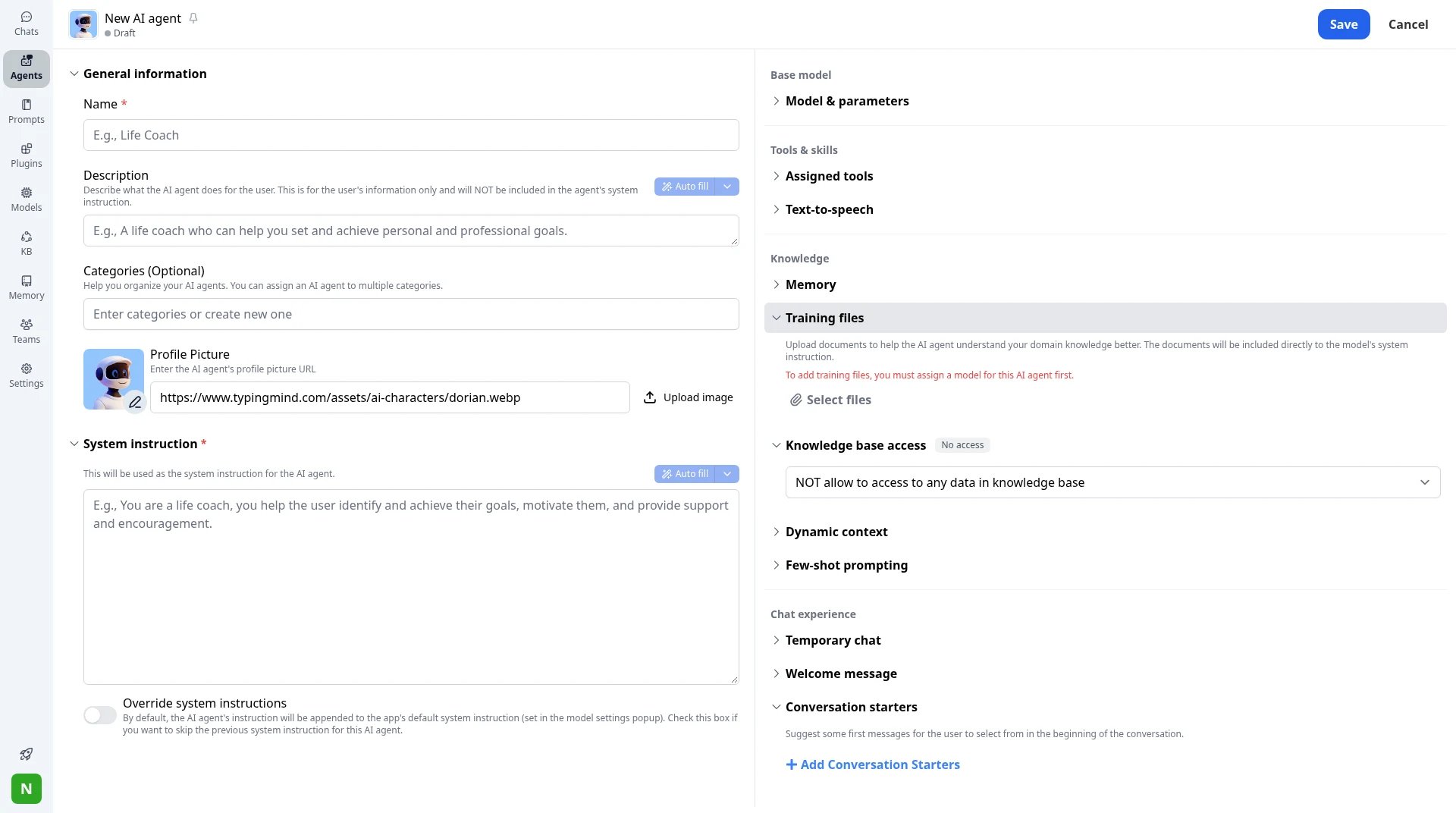
New AI agent: system instruction, training files, tag-based knowledge access, dynamic context, few-shot prompting, conversation starters.
“Most importantly, being able to save my best questions (the prompts) is fantastic! It saves me a ton of time every day.” — Verified User in Higher Education, G2An engineering student on G2 described using separate folders per project:
“TypingMind lets me create separate folders for different projects. For example, I have a dedicated folder just for my “Smart Irrigation System” code.” — Krishnakant R., G2In practice, one “Client proposals” agent has training files, tag-limited knowledge-base access, and conversation starters. A “Support replies” agent never sees those files. Run either on Claude today and a cheaper model tomorrow without rebuilding it.
Tools that stay on when you switch models
The ChatGPT / Claude answer: both products now support connectors and MCP. ChatGPT documents custom MCP servers for its web app (OpenAI Help Center). Claude documents MCP connectors, skills, and plugins (Claude docs). So connecting tools is not unique to TypingMind. What TypingMind does differently: the tools menu sits on the chat itself. You toggle Web Browser, plugins, and MCP servers (filesystem, Notion, GitHub, n8n, and whatever you add) for this conversation. Those tools stay on when you switch models in the picker, for example from Claude to GPT, a local model or an OpenRouter route. The agent, its files and the enabled tools don’t reset when you change providers.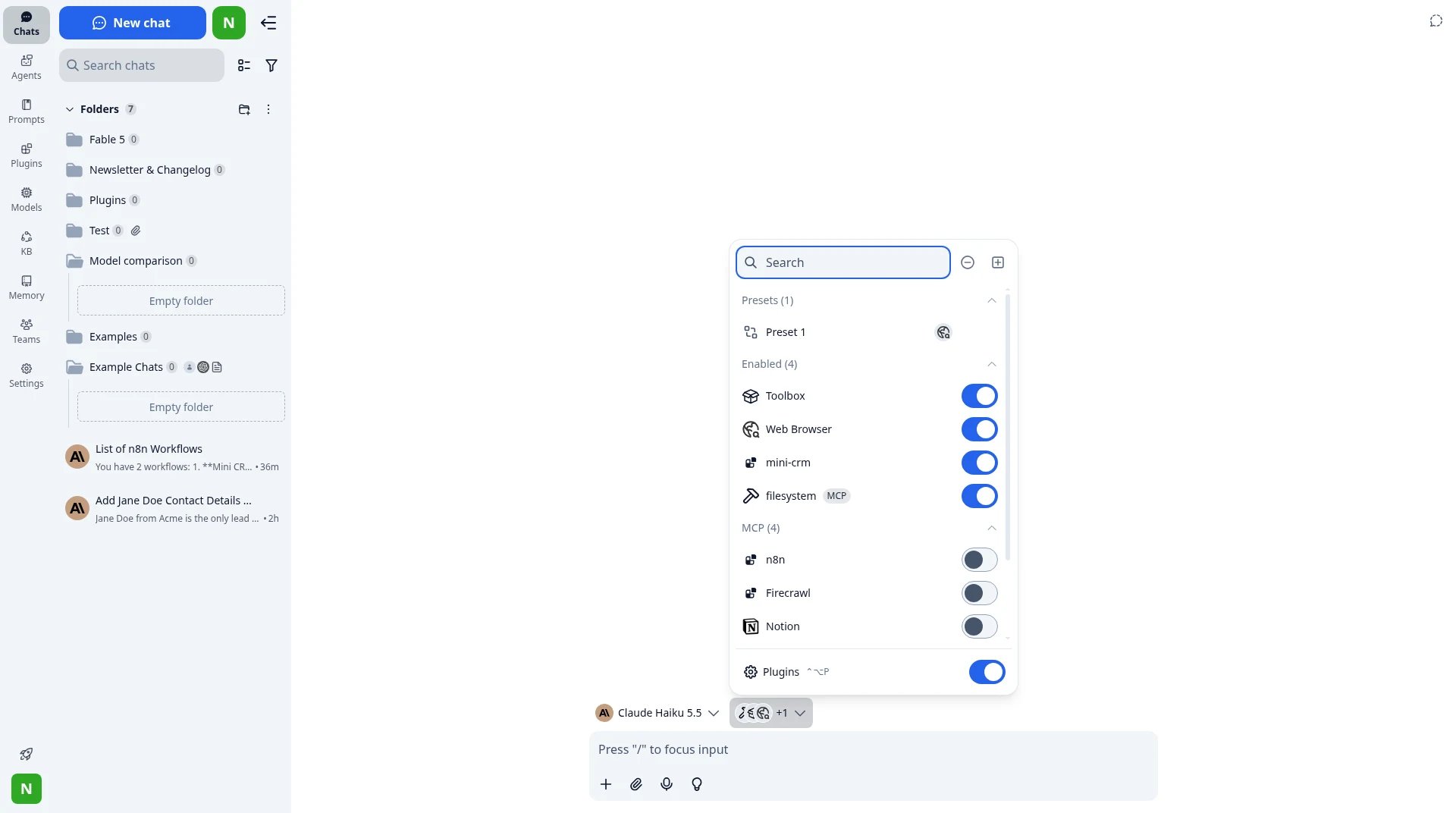
Per-chat tool switches: plugins, built-in tools and MCP servers, which stay with the chat when you change models.
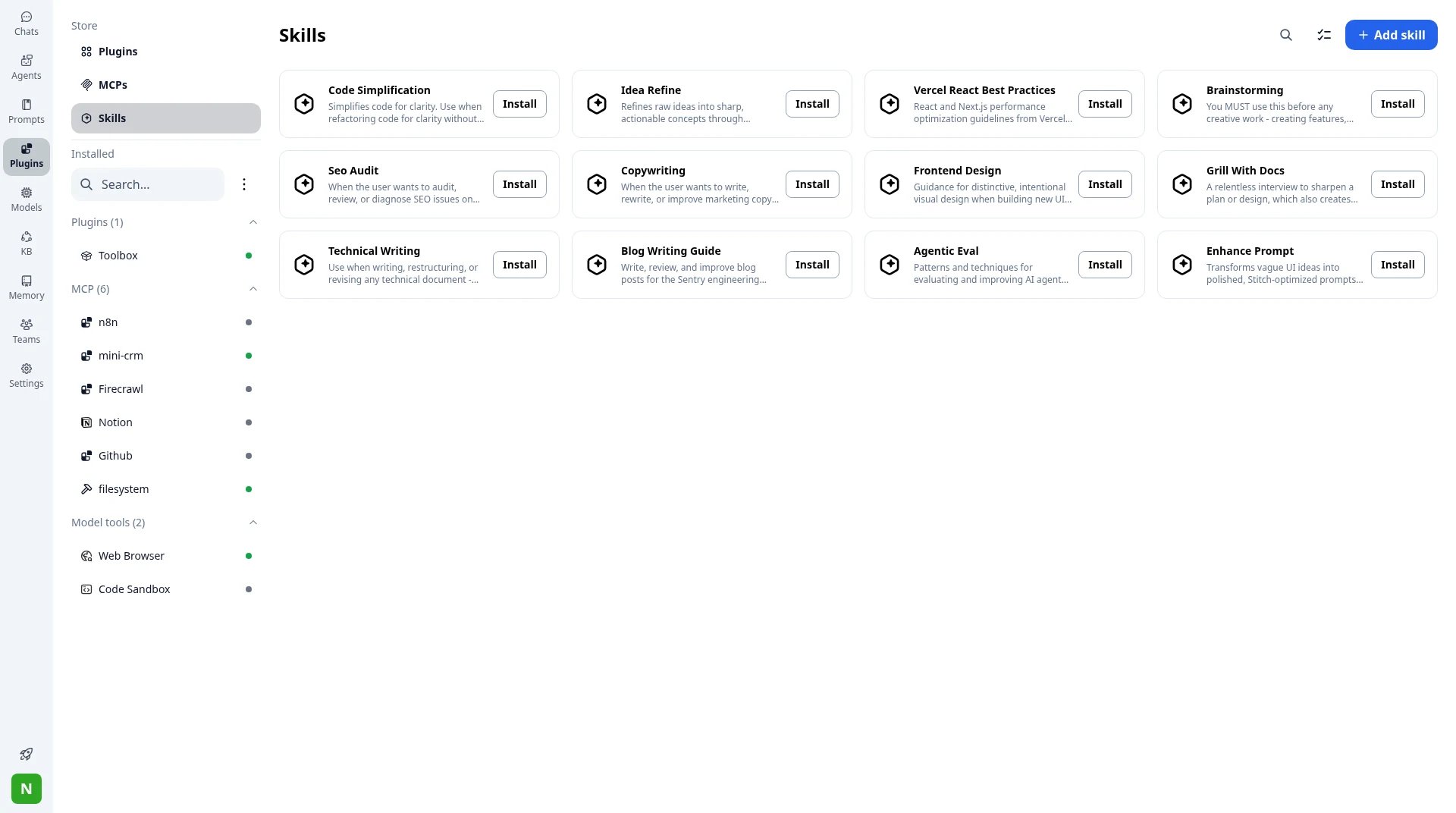
Plugins → Skills: install ready-made skills or add your own. Installed MCP servers are listed on the left.
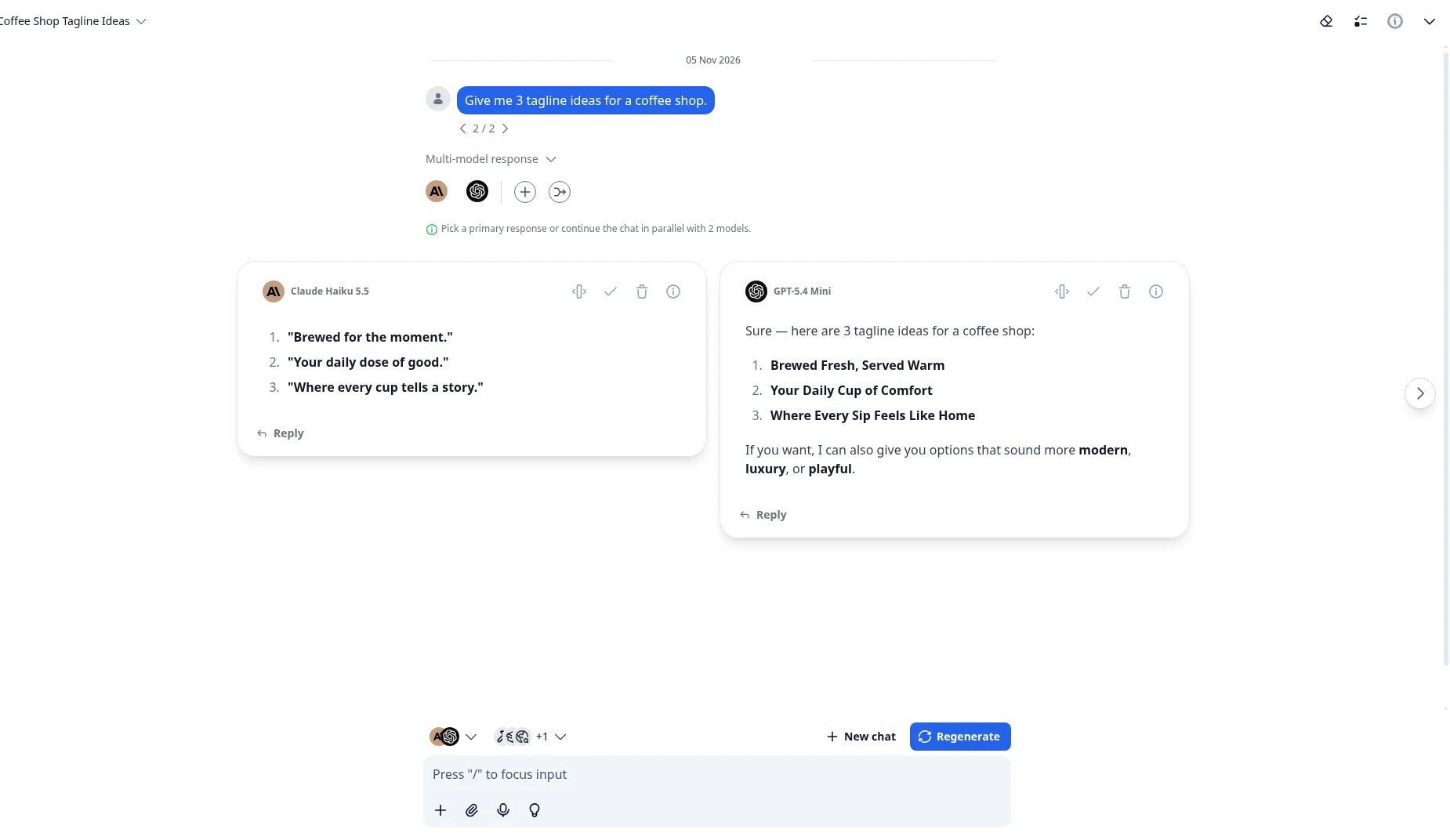
Multi-model response: two models answer the same prompt side by side. Pick a primary, or continue in parallel.
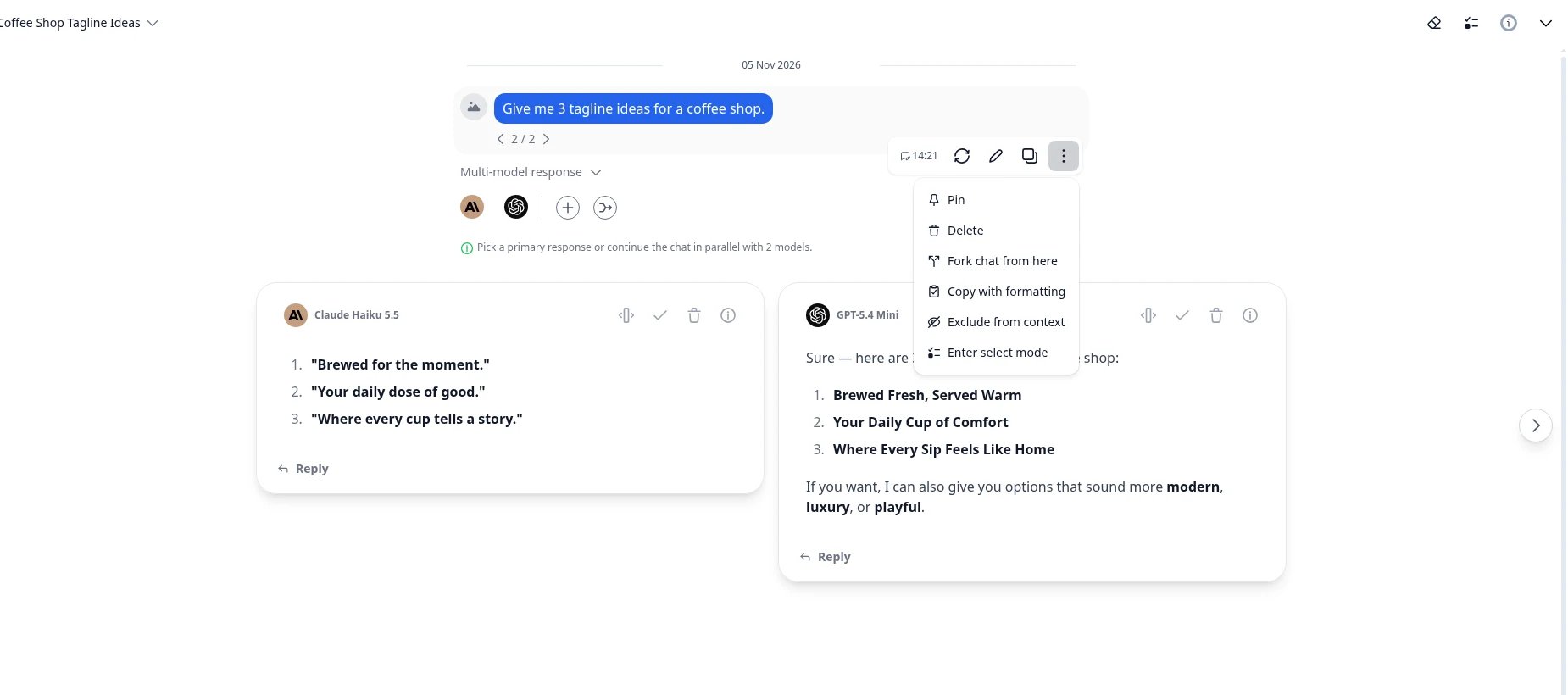
Message menu → Fork chat from here: branch the conversation without losing the original.
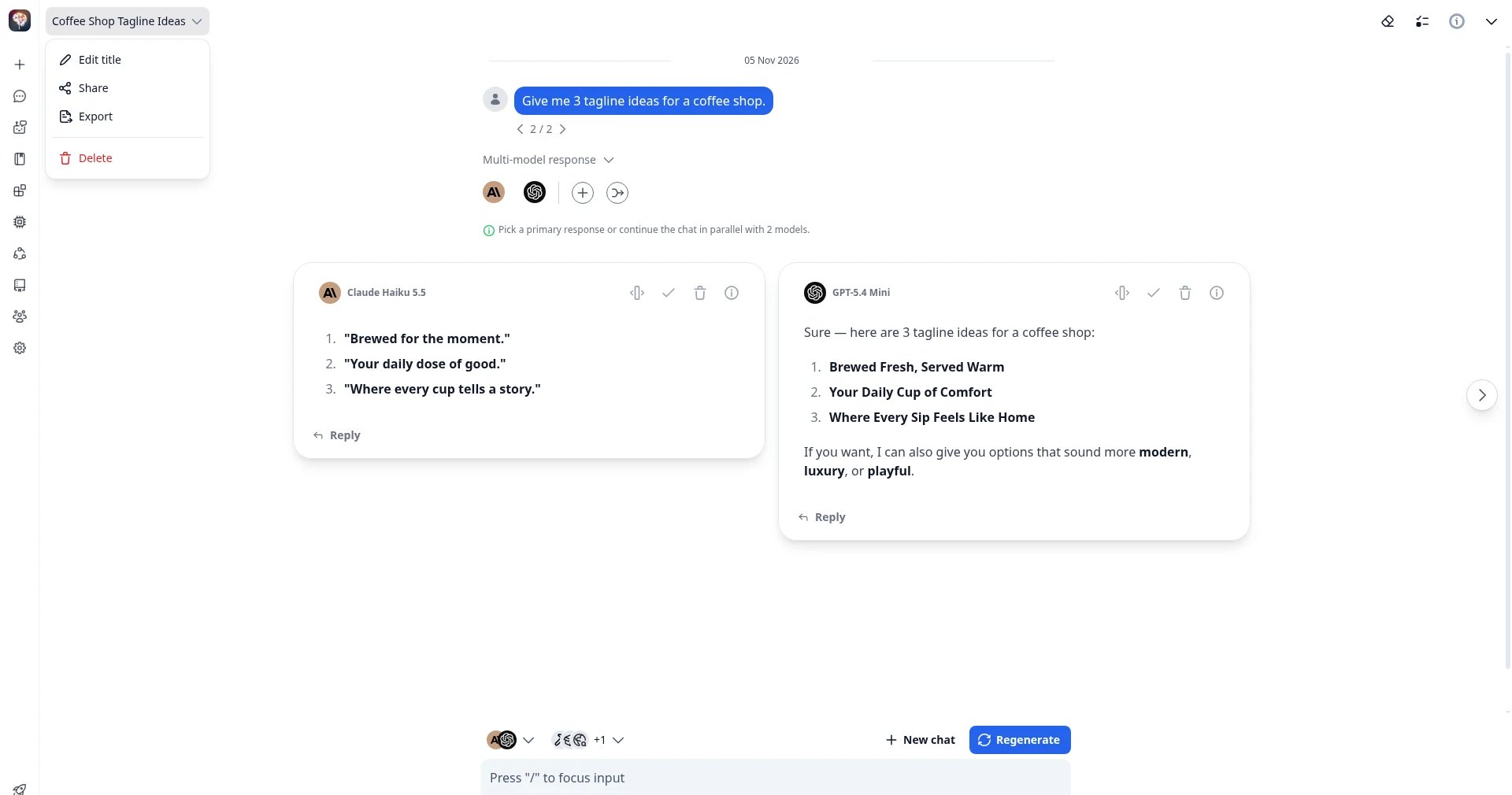
Chat title menu → Export: take the thread with you.
Works where you work: phone, tablet, and laptop
TypingMind runs in the browser and installs as a PWA. On your phone or tablet, add it to the home screen and it opens like an app. The same workspace can live on your laptop, desktop, and phone. Your data stays on your device by default. To move chats between machines, use Export / Import, or turn on Cloud Sync & Backup for automatic sync across devices. TypingMind Cloud is an optional, separate service: the FAQ describes it as “opt-in only,” with “some free storage limit and options to pay for upgrades,” and notes that a license does not include a Cloud account. One Capterra reviewer wished Cloud pricing were lower. If you don’t need automatic sync across devices, keep your data local and skip Cloud Sync.Common questions before buying
”Isn’t paying for a license and API usage paying twice?”
One G2 reviewer put it this way:“Even after paying for licence, we must bring our own API keys, basically we are paying for the platform not the ai models.” — Biswajeet S., G2A subscription bundles the app and the model and caps your usage. TypingMind separates them. You pay once for the workspace, then pay each provider only for what you use, with no plan cap deciding when you stop. Bring-your-own-key also means you can see usage clearly: each model’s details show its price per million tokens (see the Models screenshot above), and Prompt caching under Models → Global settings reduces cost when you reuse long contexts. TypingMind can also show a cost estimate before you send a prompt. The G2 student above found it “way cheaper on a student budget than paying a flat premium subscription every month."
"Isn’t setup a pain?”
There’s a one-time step, and reviewers are clear about it:“The annoying part is having to figure out the API key connection yourself; it’s a bit technical at first.” — Verified User in Higher Education, G2In practice that means creating a key with your provider and pasting it into Models → API keys. If you use OpenRouter, one key covers many models through Import OpenRouter. After that first setup, it’s just chat.
”Why not just use ChatGPT (or Claude)?”
You still can, and many people use both. TypingMind connects to the same underlying models through your API keys, so GPT, Claude, Gemini and the rest sit in one sidebar. Vendor-specific extras that live only inside those companies’ own apps stay there. TypingMind adds the layer around them: every major model in one place, agents and prompts you actually tune, tools that keep working when you switch providers, local runners when you want data on your machine, and no plan cap on the chat itself. An independent two-month comparison on Reddit put it this way:“Uses your own API keys, not a subscription aggregator but more of a unified UI… Verdict: good fit if you’re paying for direct API access anyway and want a better UI.” — r/AppBuilding→ Comparing apps? Read TypingMind alternatives and ChatGPT Plus alternatives.
What it costs
In November 2026, typingmind.com/buy listed three one-time license tiers:Buying for a team?
Everything above is the Personal app. TypingMind Teams adds an admin panel: SSO and SCIM sign-in, Roles & Permissions, Chat Logs and Audit Logs, a shared Knowledge Base, and Usage Limits so one power user can’t burn the month’s budget.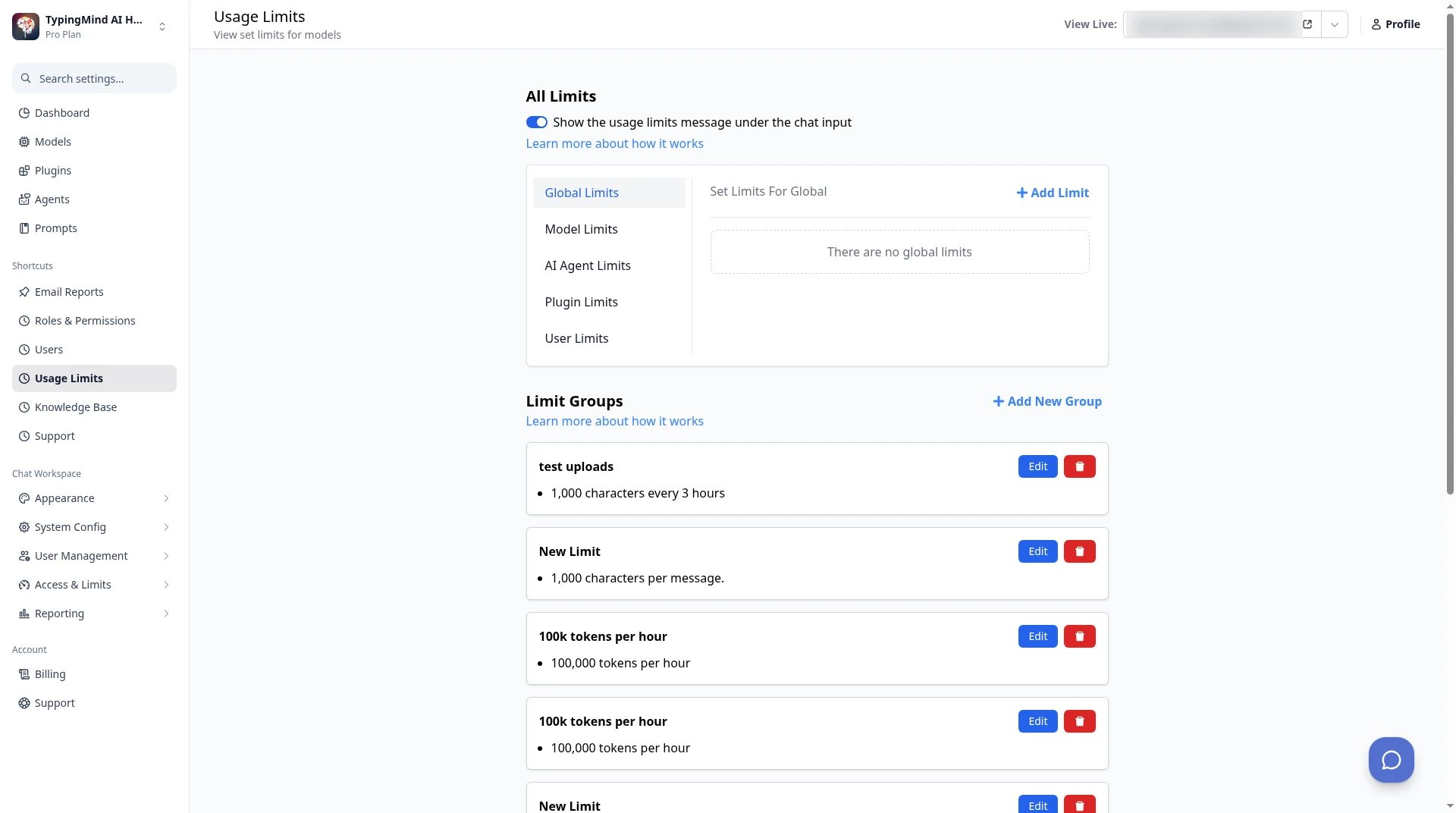
Teams admin → Usage Limits: reusable Limit Groups applied per model, agent, plugin or user.
“Uses LLM APIs so none of our data is used for training… Robust admin tools to set limits, manage access control (for models, AI characters, training data, etc).” — Justin A., Founder and CEO, Capterra→ Related: Shadow AI at Work: How to Give Employees AI Access You Can Manage, ChatGPT Business alternatives and Claude Team alternatives
Summary
If you use more than one model, want deep control over how the AI behaves, and would rather pay per use than wait out a cap, TypingMind is the workspace that keeps your setup together when you change providers: every major vendor’s models in one sidebar, agents you actually tune, tools that travel with the model you pick, local runners when you want data on your machine, and the same workspace on phone and laptop via a home-screen install. One Capterra reviewer wrote:“Amazing. It has been my fav purchase in the past two years. No regret. I purchased a lifetime license.” — Reviewer, Controller, Capterra
Try it
- Open typingmind.com and connect one API key, or import your OpenRouter models.
- Build one agent for the task you repeat most.
- If it doesn’t fit your work, use the 14-day money-back guarantee.