

How does prompt caching work?
Each time you send a message, TypingMind sends the model your instructions and the chat so far. In long chats, most of that text is the same every time. With prompt caching, the provider stores the start of your prompt for a short time. When the next request starts the same way, it reuses that part instead of processing it again:- The provider checks if the start of your prompt matches something it cached recently.
- If it matches, it reuses the cached tokens at a lower price.
- If not, it processes the request normally and may cache it for next time.
How to turn on prompt caching in TypingMind
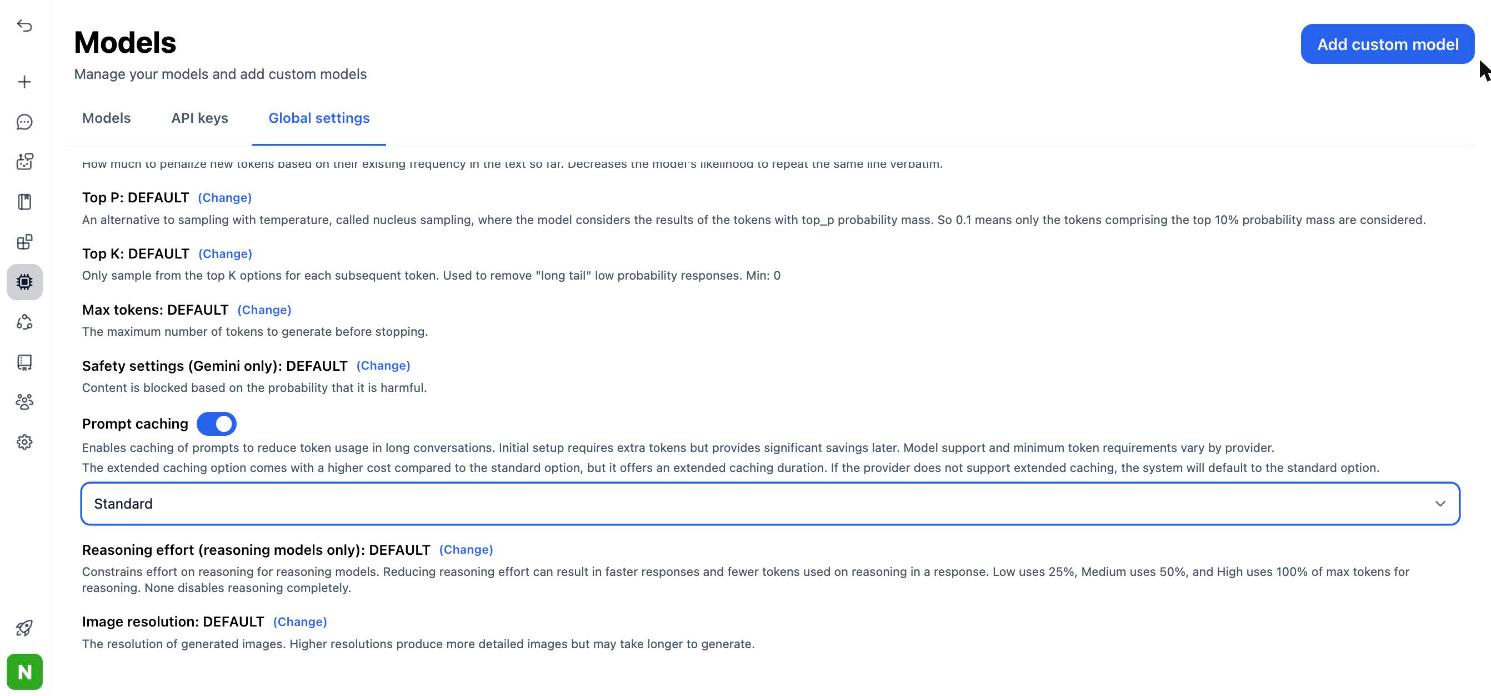
- Click Models in the left sidebar.
- Open the Global settings tab.
- Scroll down and turn on Prompt caching.
- Choose a cache duration: Standard or Extended.
Supported OpenAI models cache prompts automatically. You don’t need to do anything for them to work.
Standard vs Extended: how long does the cache last?
Standard is the provider’s normal cache time. Extended keeps the cache longer but costs more. If a provider doesn’t support Extended, TypingMind uses Standard.
Pick Extended when you come back to the same long chat or agent many times a day. Pick Standard for quick, one-off chats.
AI agents share their Claude cache
When you chat with an AI agent on a Claude model, TypingMind reuses the agent’s instructions and training files across all chats with that agent. Opening a new chat with the same agent doesn’t cache the agent’s full context again. You don’t pay to cache the same instructions over and over.How much does prompt caching save?
Claude
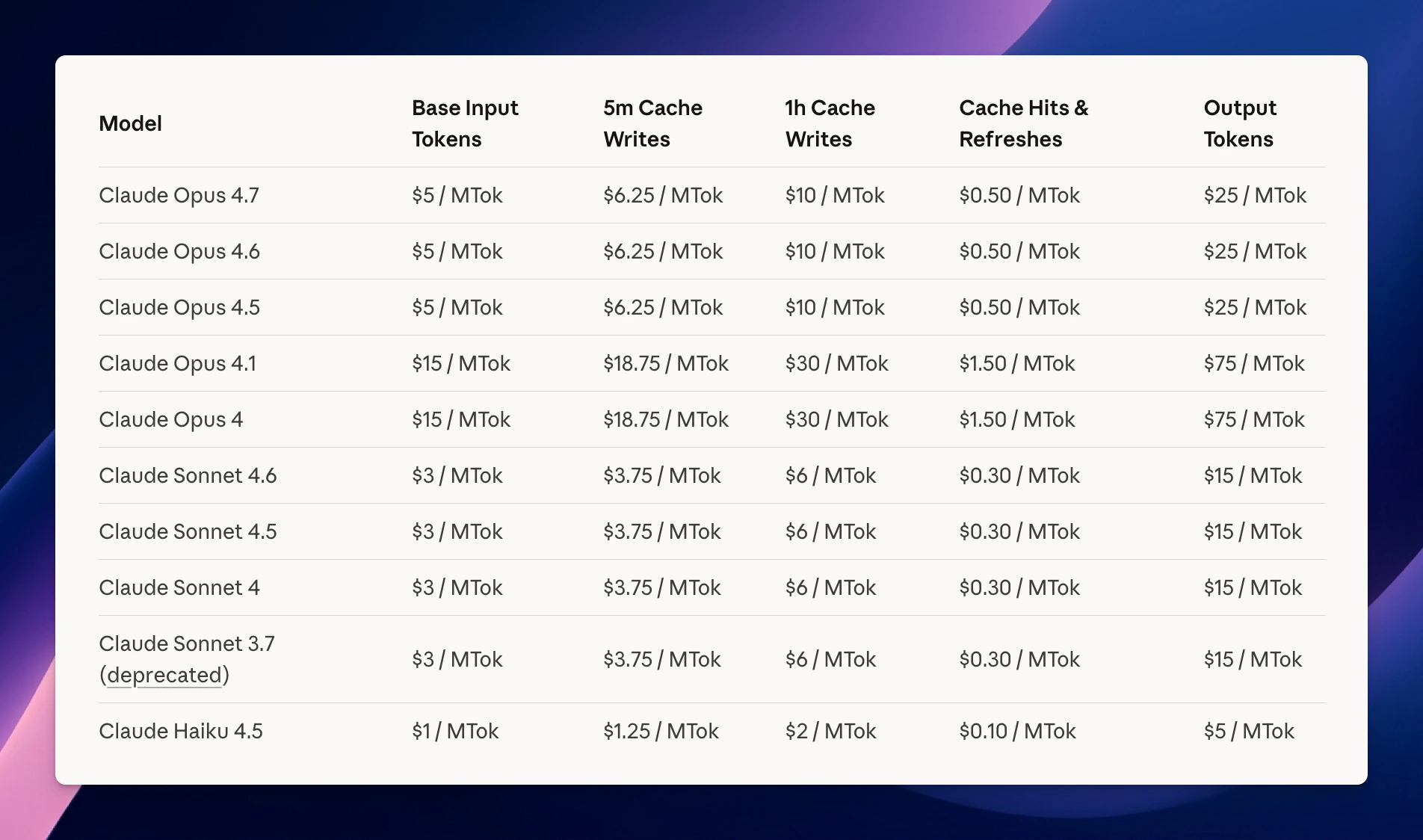
- Writing content to the cache costs 25% more than normal input tokens.
- Reading cached content costs 10% of the normal input price.
- The minimum prompt length you can cache depends on the model.
- You can set up to 4 cache breakpoints in one prompt.
OpenAI
OpenAI says prompt caching can cut input costs by up to 90% and response time by up to 80%. Results depend on the model and on how often you hit the cache.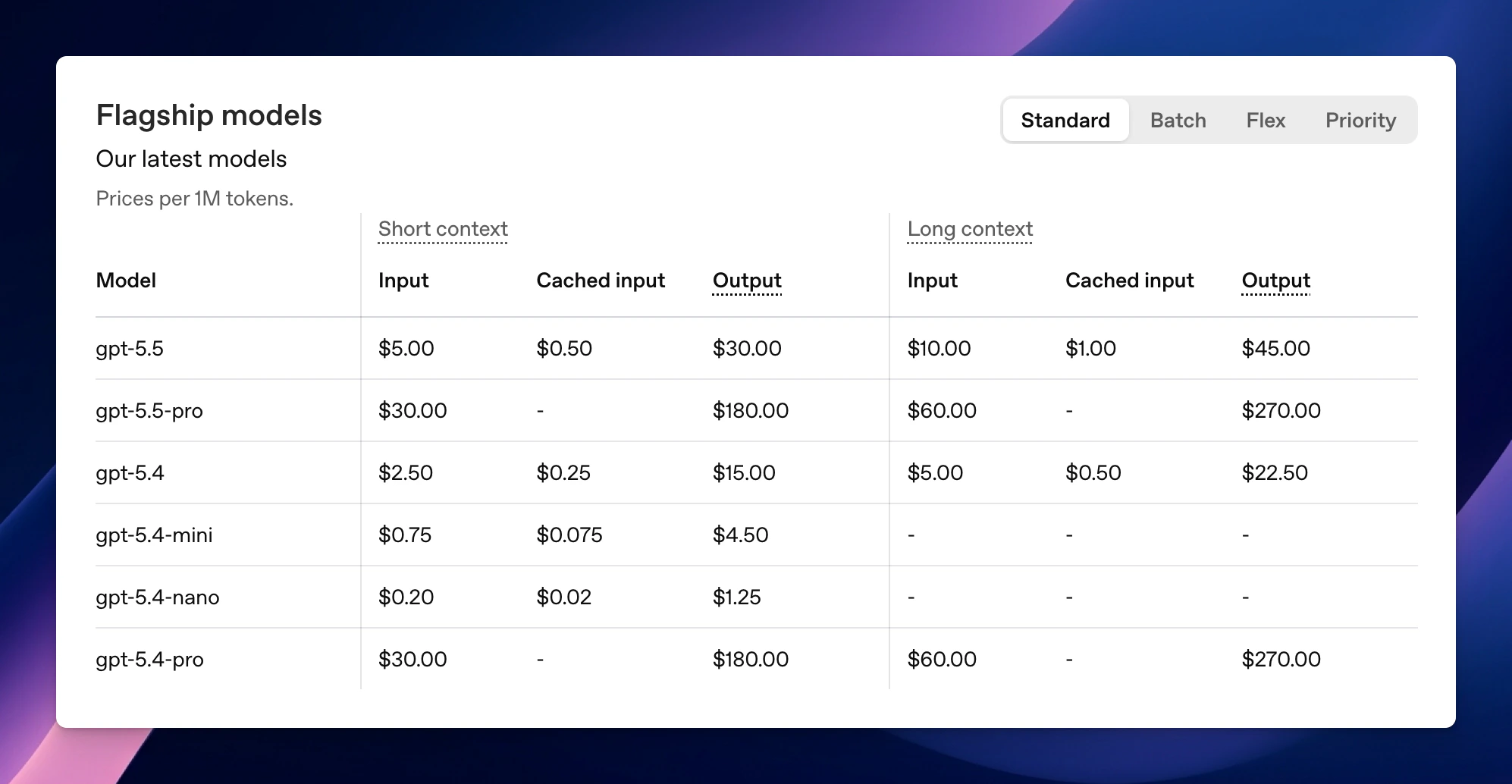
- Prompts need at least 1,024 tokens to be cached.
- The start of the prompt must match exactly.
- The API response shows how many tokens came from the cache.
Gemini
Gemini pricing has three parts:- Normal input and output prices when the cache misses.
- A 75% discount on input when the cache is used.
- A storage fee for keeping content in the cache. OpenAI and Anthropic don’t charge this.
When should you use prompt caching?
- Long documents: chat with books, contracts or reports without paying full price on every turn.
- Coding: keep a large codebase in context and get more accurate help.
- Detailed instructions: include many examples to improve output quality.
- Multi-step tasks: keep full context while you work through a complex problem.
Tips to get more cache hits
- Put reusable content at the start of your prompt.
- Use the cache often. Unused content expires and is removed.
- Turn on Extended if you return to the same long chat or agent often.
- Watch your cost per chat. If costs stay high in long chats, check that your instructions don’t change between messages.
FAQ
Do I need to turn on prompt caching for OpenAI models?
Do I need to turn on prompt caching for OpenAI models?
No. Supported OpenAI models cache prompts automatically. Turn on Extended only if you want the cache to last up to 12 hours.
Why does the first message cost a bit more?
Why does the first message cost a bit more?
Some providers, like Anthropic, charge extra to write content to the cache. You save on every later message that reuses it.
Does prompt caching change the AI's answers?
Does prompt caching change the AI's answers?
No. It only changes how the provider processes your input. The answers are the same.